
Free to create
Create QR codes you need at no cost.

Create custom QR codes for links, Wi-Fi, contacts, social media, and more.
Image
Shape
Position
 Center
 Right
Text Color
Font
Solid Color
Gradient Color

Solid Color
Image


 #1
QR Code Generator

 4.8

 5M+
Users worldwide
Select the type of content you want to share.
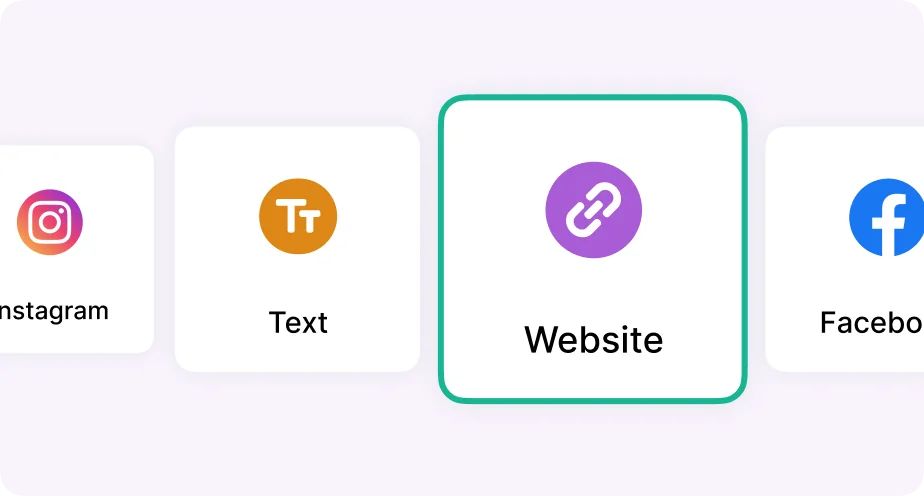
Add your link, text, contact information, or other details.
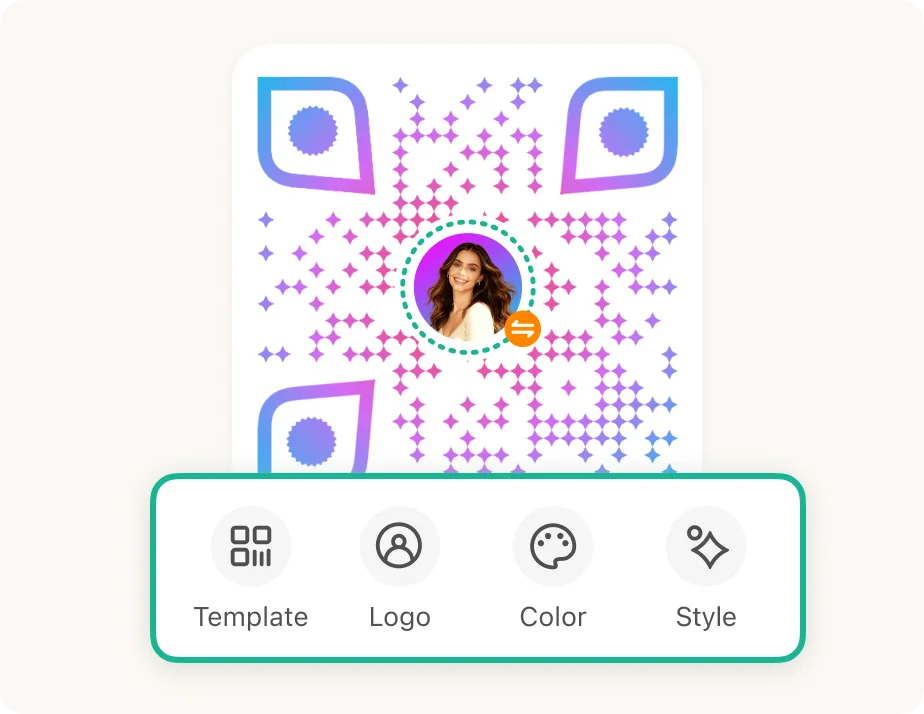
Personalize your QR code with templates, logos, colors, and styles.
Download your Ideal QR Code right away.
Create, customize, and share QR codes your way.
Create QR codes you need at no cost.
Choose templates, logos, colors, and styles in a few clicks.

Create and download without an account.

Each QR code is checked before you save or share it.

Choose templates, logos, colors, and styles to make your QR Codes unique.


All-in-one QR Code App. Quickly create, highly customize, reliably scan, and easily manage your QR codes.


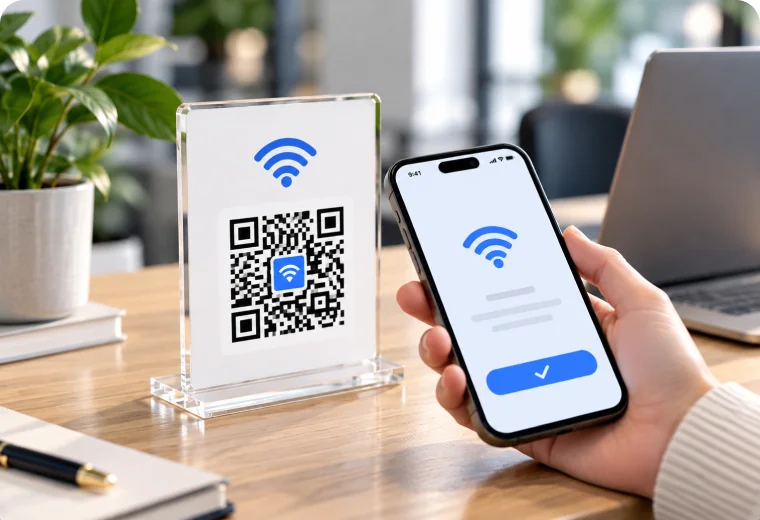
Allow guests and clients to join your office or café wireless network instantly without typing passwords.
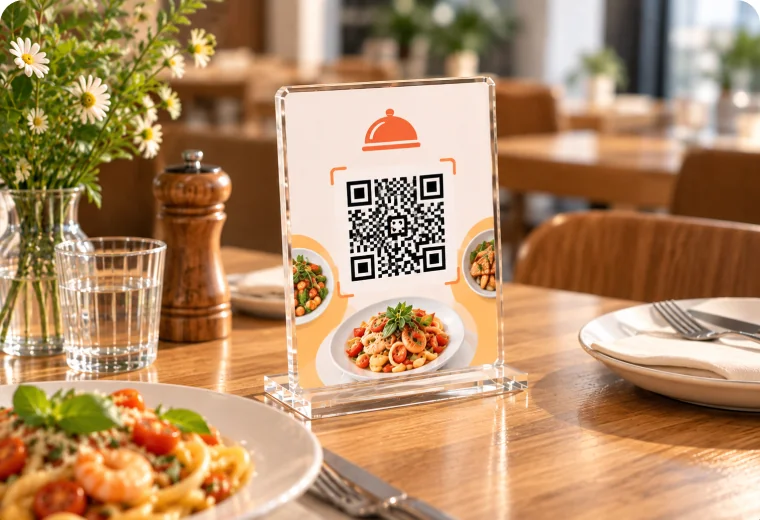
Enable contactless dining with mobile menus, daily specials, and tableside ordering links.
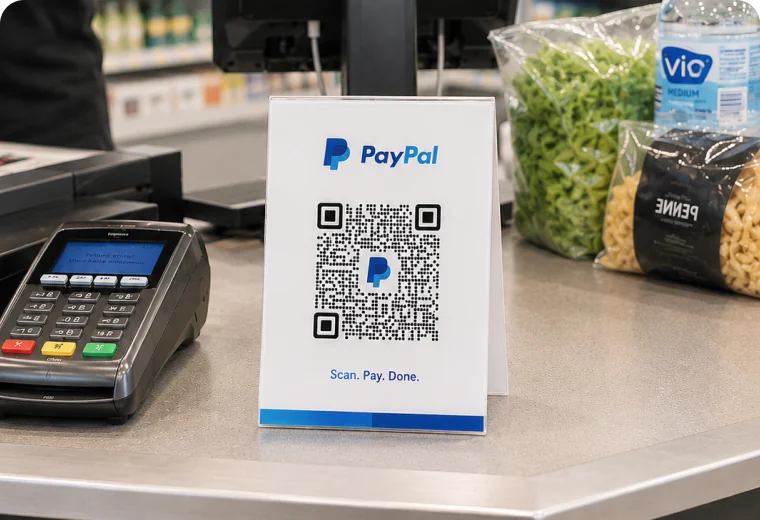
Accelerate checkout with instant links to mobile payment gateways.
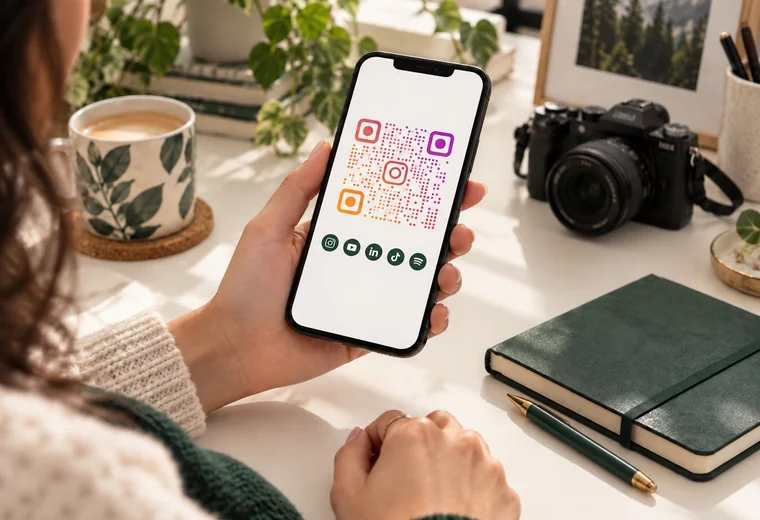
Direct followers to your Instagram, YouTube, TikTok, or multi-link trees instantly with a single scan.

Learn the basics of QR codes, from how they store information to how to scan one.
A QR code (Quick Response code) is a two-dimensional barcode that stores information in a pattern of square modules. A phone camera or QR scanner can read it and quickly open a website, connect to Wi-Fi, share contact details, or display text.
A QR code is built from a grid of small squares called modules. The large finder patterns help a scanner locate and orient the code; timing and alignment patterns help it read the grid; the remaining modules carry encoded data and error-correction information. A clear margin, or quiet zone, helps separate the code from its surroundings.
Open your phone’s camera and point it steadily at the QR code, keeping the full code in view. When a link or action appears, tap it to continue. Use good lighting and a clear, unobstructed code; if your camera does not recognize it, try the QR scanner built into your phone.
QR codes make information quick to access with a camera scan. They can share different kinds of content, fit on printed materials or screens, and reduce the need to type long links or network details. A static QR code keeps the information encoded in the code itself, so it can be scanned without an account or scan-tracking service.

Mike
Café Owner

I made a QR code for our menu in under a minute. The preview was instant, and setup couldn't be easier.

Sarah Lin
Fashion Stylist
The template selection is fantastic. I found a style that fit our boutique and had a branded code ready in seconds.

David Kim
Studio ManagerWe use Wi-Fi QR codes for guests at our studio. No more reading out long passwords or typing them in.

Elena Patel
Event PlannerClean interface, quick result, and the downloaded QR code looks sharp on our event cards.

Aisha Khan
Small Business OwnerI created codes for all our social profiles and put them on one small sign. It's simple and works exactly as expected.

James Miller
Marketing LeadFinally, a QR code generator with useful customization that doesn't slow down the process.

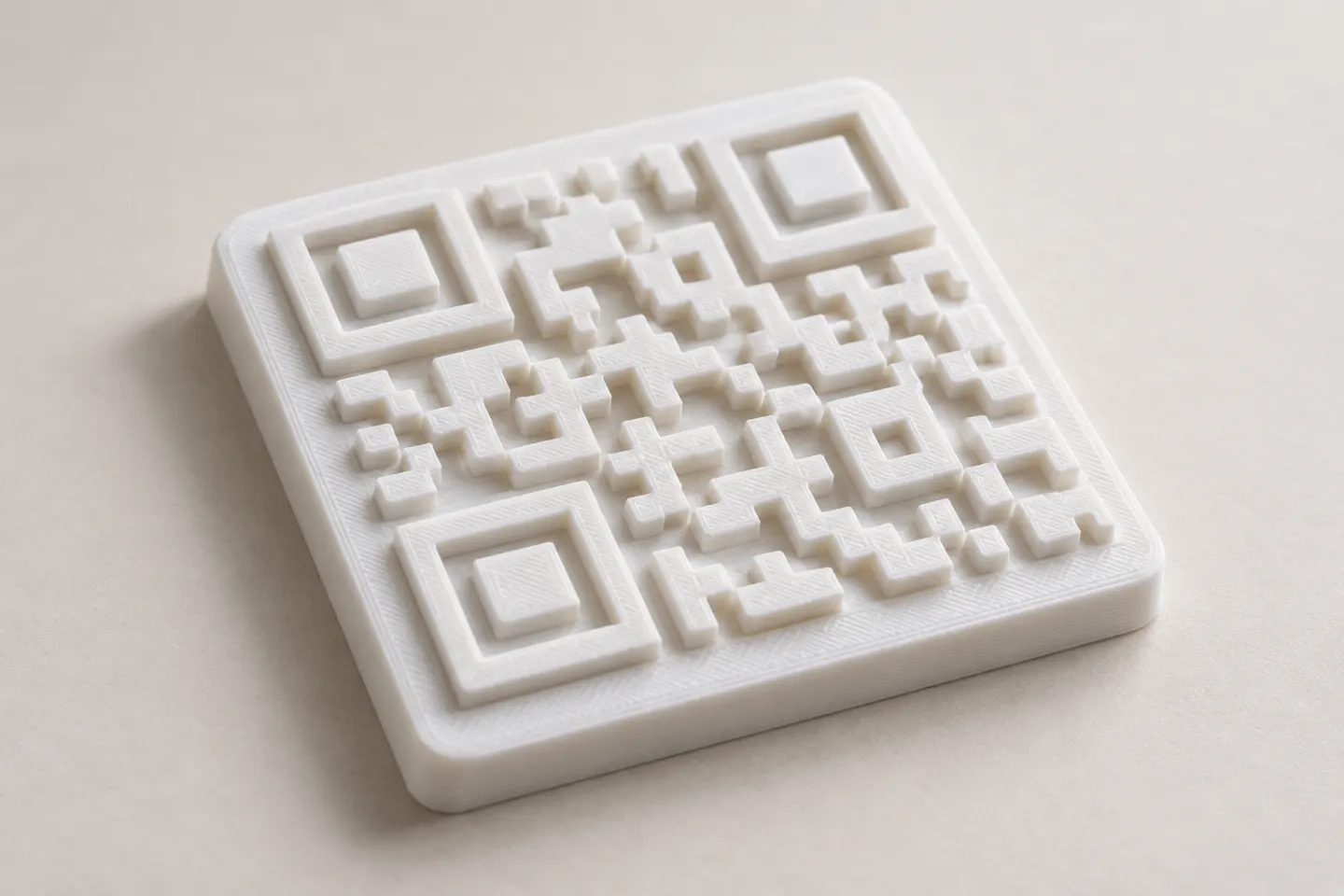
Yes, a QR code can be made as a 3D print, but scan reliability depends on readable modules, contrast, print detail, and testing the finished part.
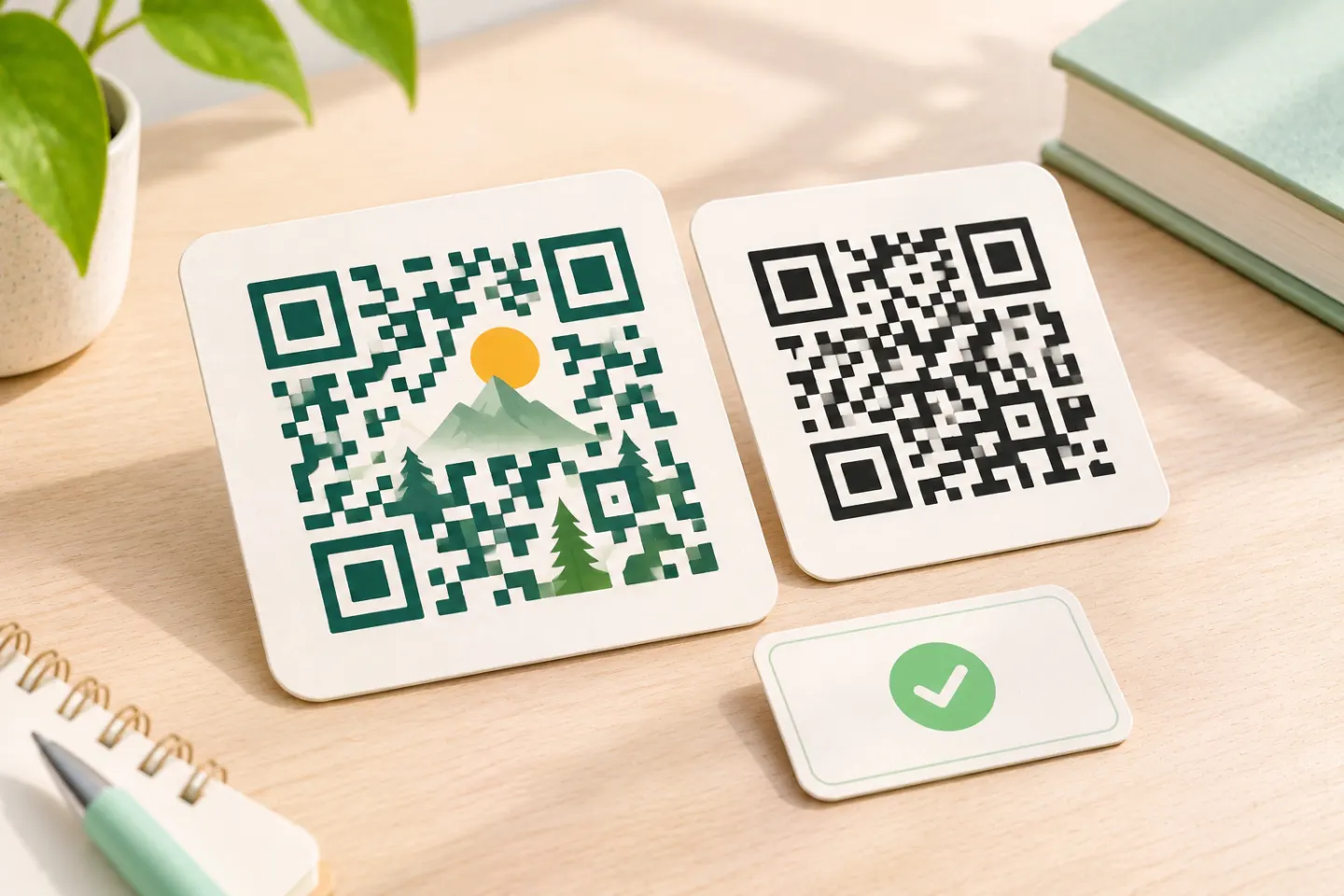
Learn why AI art QR codes can scan, what error correction cannot fix, and how to check the final design before printing or publishing.
JIS/ISO-compliant QR Codes have no usage license fee. Check separate costs for generators, hosting, redirects, analytics, and printing.
Answers to common questions about creating, customizing, sharing, and scanning QR codes with QRHyper.
Yes. You can create and download static QR codes on the web without creating an account.
No. You can enter your content, create a QR code, and download it without signing up.
Choose a QR code type, enter the content you want to share, customize the design if you like, then download the result.
QRHyper offers types for websites, text, Wi-Fi, contact details, social profiles, email, phone numbers, messages, and more. Choose the type that matches what you want someone to access after scanning.
Yes. Select Website, paste the full URL, and create your code. Test the link before sharing the QR code.
Yes. You can use QRHyper on a mobile browser or use the QRHyper app to create and scan QR codes on your phone.
Yes. QRHyper offers templates, logos, colors, and styles to help you make a QR code that fits your project.
Yes. You can choose a logo as part of your design. Keep it small enough that the surrounding code remains easy to scan, and test the finished QR code.
Yes. You can choose different colors. For dependable scanning, keep strong contrast between the code and its background.
Yes. Style options let you change the look of the QR code’s dots and corner eyes while keeping the code recognizable.
Yes. Start with a template, then adjust its logo, colors, or style to suit your brand or occasion.
A customized code can scan well when its pattern is clear and the contrast is strong. Always test the final design on more than one phone, especially before printing it.
Yes. Choose the Wi-Fi type and enter your network details. Scan the finished code with a phone to confirm that it connects as expected.
Yes. You can create a code for an Instagram profile or another social destination so people can reach it with one scan.
Yes, if the QR code points to a page that contains all your links. A standard QR code normally opens one destination, so a multi-link page brings those profiles together.
Yes. Select the Contact type and enter the details you want people to receive when they scan.
Create a code for your online menu URL, then place it where diners can easily scan it. If the menu page changes while its URL stays the same, the printed static QR code can keep working.
You can create a QR code that opens a payment link from your chosen provider. The provider handles the payment; test the destination before displaying the code to customers.
After entering valid content, select Download beside the preview to save your QR code as a PNG image.
Yes. Use a clear, high-contrast image, leave some white space around the pattern, and test a print sample at its intended size.
Yes. QR codes can link printed materials to a website, contact details, instructions, or another relevant destination. Make sure the code is large enough to scan.
Yes. Share the downloaded image, or send the destination link directly when that is more convenient.
Yes. QR codes can be displayed on digital signs, presentations, or another screen. Keep them large and clear enough for a camera to focus.
No. A static QR code contains its destination in the pattern itself. To point to a different URL, create and share a new code. You can still update the content of a webpage at the same URL.
Choose from 33 QR code types for the link, message, profile, or information you want to share.
